Choose your tool
Pick the tool you need and get started.
Create a CV, write a cover letter, edit images, work with PDFs and split photos — all in one place.
Free · No signup45 CV templates · Live preview · Free tools · No signup
Choose a task. We’ll take you to the right tool.
Start with a blank page, a photo or a document. Make it yours, then download your work.
Pick the tool you need and get started.
Add your content, edit and preview your work.
Download your finished file, ready to use.
Useful tools for work, applications and everyday ideas.
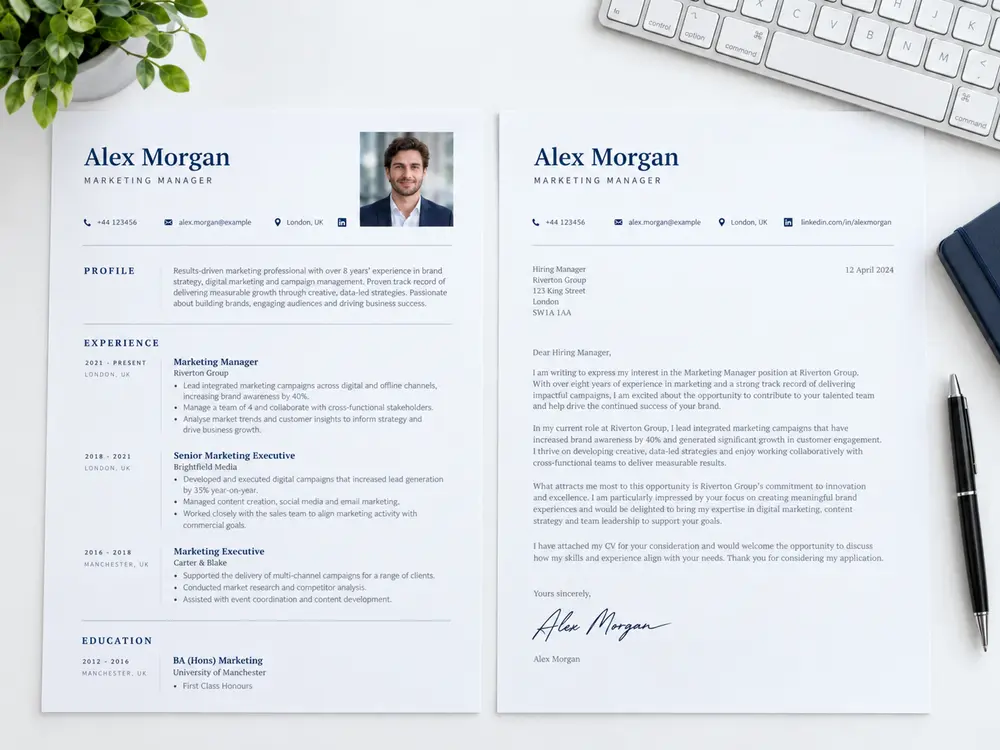
Build an application that tells your story clearly.
Choose from 45 templates and see changes live.
Create a cover letter that matches your application.
15 roles. Practical guidance. Ready to edit.
Handle the little tasks between your idea and the finished file.
Edit photos, add text, make collages and letter portraits, combine images and export. Advanced tools run locally in your browser.
Merge, split and organize PDF files.
Create ordered tiles for posts and projects.
Use clear section headings and short paragraphs so readers can quickly find your experience, education and skills.
Put the experience most relevant to the role first. Use specific examples to explain your contribution.
Check spelling, dates and contact details, then review the full preview before downloading your CV.
Keep an original copy of your image or document so you can return to it when you need another edit.
Choose the tool that suits your task: edit a photo, arrange PDF pages or split an image into tiles.
Review page order, image clarity and the downloaded file before sharing it with someone else.
More with Pastegram
Create, convert and get more done with tools that fit your day.
Less paperwork. More time for you.
Your next great design starts here.
Collect entries and choose your winner.
Build magazines and newsletters.
Convert, calculate and simplify everyday tasks.
Start right away.
Image · Text · Compose
Download your finished file, ready to use.
Find a quick answer, then get back to creating.
Open the CV editor or Cover Letter tool, choose a layout, add your details and review the preview. Download the finished document as PDF or Word.
CV examples offers role-based samples. Career Tools helps compare a CV with a job description, while Application Tools provides practical help for applications and interview preparation.
Use the Image Editor for photos, text and layered designs. Banner Studio provides editable templates, while Meme Maker and Studio & Collage help combine captions, images and layouts.
Choose an image, set the grid and preview the tiles. Download the pieces and check their order before posting them.
Merge files, split or extract pages, organize and rotate pages, and convert between images and PDFs. Choose the tool that matches your task and review the output.
Use the selected tool’s download or export action. If a browser print window opens, choose Save as PDF and review page size, margins and the preview.
Document Scanner lets you straighten and clean document photos and export pages. Image / PDF to Text extracts editable text from supported images and PDFs. Review extracted text for errors.
The tools support mobile layouts. Choose a file or use the camera where available, then preview the result before downloading. Large files may need more device memory.
Daily Tools includes Invoice Maker, Quotation Maker, Receipt Maker and Delivery Note. Enter the business and customer details, add items and review the document before exporting.
Use the available document fields for VAT, registration details, terms and signatures. Check the subtotal, VAT and grand total, and confirm the wording and figures before sharing.
Open Magazine Maker, create a new issue and choose page layouts. Add articles, photos and text, then use the page preview and publishing tools to prepare your issue.
Save an editable project or a named issue in the browser. Export a PDF or web edition when ready. Keep a downloaded project copy if you need to move the issue to another device.
The organizer creates an album and shares an invite link. Participants submit their entries through that link. Available settings control deadlines, visibility and judging.
The organizer chooses the album’s available public settings. Comments and voting depend on the options enabled for that competition. Check the submission rules before uploading.
Many public tools can be used without signing in. Optional account features and competition actions may require an account. The tool will show the available saving and access options.
Browser drafts stay in the browser where they were created. Account documents and downloaded project files use their own saving workflows. Export important work before clearing browser data.